Windows 11 USB Startup Chime and Code 43: Diagnosing an Unknown USB Device (Port Reset Failed)
Article status
Current- Verified
- 2026-07-28
- Environment
- Windows 11 / Intel xHCI USB controller / desktop USB 2.0 and USB 3.x ports
- Caveat
- Disabling the single failed device node removed the startup notification on the tested machine. The physical or controller-level cause behind fixed path SS07 remains unconfirmed; do not disable the USB root hub or Intel USB controller.
This is a controlled diagnosis of a Windows 11 machine that played one USB connection/disconnection chime after every login while Device Manager showed “Unknown USB Device (Port Reset Failed).” Moving the camera and wireless receiver did not make the error follow either peripheral; disabling USB selective suspend and updating the BIOS did not remove it. The failure consistently returned on logical USB 3.x path SS07. Disabling only that failed device node stopped the startup warning without affecting the devices used day to day.
The short answer
“Unknown USB Device (Port Reset Failed)” means Windows detected a USB connection but could not complete port reset or device enumeration. If the device identity cannot be read, Windows may retain placeholder information such as VID_0000&PID_0001 and report Code 43 in Device Manager.
When the warning appears at every startup at the same time as a USB connection or disconnection sound, both symptoms likely come from the same failed enumeration. Code 43 only says that the device stack reported a failure. It does not identify whether the cause is a peripheral, cable, receptacle, front-panel header, motherboard, power delivery, firmware, or driver.
The important observations on this machine were:
- the error always appeared under the Intel xHCI root hub at
SS07; - the camera and wireless receiver enumerated normally and remained
OKafter being moved; - inserting either peripheral could trigger the same
SS07error after a delay of seconds to about one minute; - temporarily disabling USB selective suspend did not prevent reproduction, so the setting was restored;
- an official BIOS update did not remove the warning;
- after disabling only “Unknown USB Device (Port Reset Failed),” the next boot produced no chime and all ordinary USB devices still worked.
This is a low-impact workaround verified on one machine, not proof that the physical circuit corresponding to SS07 has been repaired. If a USB 3.x port later stops detecting devices, disconnects repeatedly, or runs only at USB 2.0 speed, continue investigating the port, front-panel cable, or motherboard channel.
When this diagnostic path applies
The sequence below is most relevant when several of these symptoms occur together:
- one USB-style chime around Windows startup or login;
- “Unknown USB Device (Port Reset Failed)” under Universal Serial Bus controllers;
- Code 43 or
CM_PROB_FAILED_POST_START; - no real vendor ID, possibly
VID_0000&PID_0001; - a location path that repeatedly ends in the same logical port, such as
XHCI.RHUB.SS07; - normal mice, cameras, and receivers even though the warning remains.
A sound before the Windows boot screen is more likely to come from firmware or a motherboard buzzer. Repeated sounds during use, multiple devices dropping out, or interrupted storage transfers indicate a higher-risk problem; do not merely hide the warning and move on.
Confirm that the sound is a Windows USB event
Press Win + R and run:
mmsys.cpl
On the Sounds tab, preview “Device Connect” and “Device Disconnect” and compare them with the startup sound.
This identifies the event sound, not the physical device. Do not simply set both events to “None.” That would hide all USB notifications and remove a useful signal if an external drive later disconnects unexpectedly.
Establish a current baseline
Open Device Manager:
devmgmt.msc
Expand Universal Serial Bus controllers, open the warning device’s properties, and record:
- device status and problem code;
- location and location paths;
- device instance path;
- driver INF;
- arrival or configuration times on the Events tab.
PowerShell provides a read-only baseline:
Get-PnpDevice -PresentOnly |
  Where-Object { $_.Status -ne "OK" } |
  Format-Table Class, Status, FriendlyName, InstanceId -AutoSize
To inspect one failed node:
$problemDevice = Get-PnpDevice -PresentOnly |
  Where-Object {
    $_.FriendlyName -like "*Port Reset Failed*"
  } |
  Select-Object -First 1

if (-not $problemDevice) {
  throw "No current Port Reset Failed device was found; stopping the query."
}

$problemDevice |
  Format-List Status, Class, FriendlyName, InstanceId

Get-PnpDeviceProperty -InstanceId $problemDevice.InstanceId |
  Where-Object {
    $_.KeyName -in @(
      "DEVPKEY_Device_LocationInfo",
      "DEVPKEY_Device_LocationPaths",
      "DEVPKEY_Device_ProblemCode",
      "DEVPKEY_Device_DriverInfPath"
    )
  } |
  Format-Table KeyName, Data -AutoSize
On a non-English Windows installation, adjust the FriendlyName filter to the localized device name. You can also select the device by instance ID after inspecting the first command.
Device instance IDs, serial numbers, hostnames, and complete logs can fingerprint a machine. When posting publicly, retain only the problem code, generic device name, and an anonymized logical path.
Repeated checks on this machine produced this stable baseline:
Status: Error
Problem: Code 43 / CM_PROB_FAILED_POST_START
Driver: Windows inbox usb.inf
Location path: \_SB.PC00.XHCI.RHUB.SS07
The warning was current, not a stale screenshot. Windows was already using the inbox USB driver, so searching for a special “unknown USB driver” would not help. Downloading an unidentified driver package from a third-party site would add risk without addressing the evidence.
Why normal devices can still work
USB 3.x adds independent SuperSpeed signal pairs while retaining USB 2.0 compatibility. Device trees commonly expose logical HSxx and SSxx paths.
One physical connector can therefore show an apparently contradictory state:
- a mouse, keyboard, or receiver works through its USB 2.0 path;
- the connector’s USB 3.x SuperSpeed path fails to reset;
- Device Manager still reports an error on a fixed
SSxxport.
“The mouse still works” does not prove that the SuperSpeed channel is healthy. Conversely, an SS07 warning does not prove that the receiver you just inserted is defective.
Round one: remove power and isolate peripherals
Start with the lowest-risk, highest-information test:
- Shut down fully rather than selecting Restart.
- Disconnect nonessential USB devices: cameras, docks, monitor USB cables, hubs, external disks, controllers, and printers.
- Unplug the PC from power, hold the power button for about 15 seconds, then wait one minute.
- Reconnect power, boot, and check the warning and chime.
- If the warning is absent, reconnect one peripheral at a time.
With all relevant peripherals disconnected, the SS07 node disappeared. That initially suggested a peripheral or cable problem, but it was not enough to identify one: inserting any device can make the root hub rescan, after which another fixed port may fail with a delay.
Round two: one variable at a time, with enough waiting
A common mistake is to insert a device, watch Device Manager for ten seconds, and declare it healthy.
Here, the wireless receiver appeared immediately as OK, and SS07 did not return at once. Roughly one minute later the fixed port reported Code 43 again. Later rounds waited at least 90 seconds and removed the old failed node before each test so stale state could not contaminate the next result.
The controlled sequence was:
- Keep only essential keyboard and mouse devices and uninstall the old failed device node.
- Do not select “Delete the driver software for this device.”
- Insert exactly one test peripheral.
- Wait at least 90 seconds, then record the working device path, failed path, and arrival time.
- Remove the failed node again before the next round.
The key comparisons were:
| Action | Working device path | Delayed failure | Interpretation |
|---|---|---|---|
| Insert wireless receiver | HS12, OK |
Fixed SS07 |
Receiver not directly identified as faulty |
| Move receiver to another connector | HS05, OK |
Still fixed SS07 |
Error did not follow receiver or old connector |
| Insert camera alone | HS01, OK |
Fixed SS07 |
More than the receiver could trigger a rescan |
| Move camera | HS11, OK |
Still fixed SS07 |
Error did not follow camera path |
| Remove camera, leave receiver | Receiver remained normal | Fixed SS07 |
Camera was not required to reproduce the failure |
The explanation that best fits the evidence is that USB enumeration triggered a controller scan, after which the same SS07 path failed to reset. The camera and receiver triggered the scan; neither was confirmed as the defective hardware.
Hypotheses the tests rejected
“The last device inserted is defective”
The camera initially appeared guilty because the warning returned after it was connected. Port swaps and clean-state comparisons disproved that inference: the receiver could also trigger SS07 while the camera was absent.
A useful USB diagnosis compares:
- whether the working device’s path changes when it moves;
- whether the failed path follows the device;
- whether the error is delayed;
- whether stale failed nodes were cleared before each round.
Permanently disable USB selective suspend
The same error reproduced while USB selective suspend was temporarily disabled, so the setting was restored.
Power management can affect recovery timing for some USB devices. A simultaneous configuration change and symptom change would still be correlation. Call it a verified fix only if the failure consistently disappears when disabled and returns when restored under otherwise identical conditions.
Reinstall the entire controller or Windows
The error stayed on one SS07 path, normal devices worked through other HSxx paths, and the system used standard usb.inf. That evidence does not justify beginning with removal of the Intel USB controller, USB root hub, or Windows itself.
Disabling or uninstalling the parent controller can take the keyboard and mouse down together and make recovery harder.
Update the BIOS only to silence one chime
An official BIOS update was later installed, but the warning remained. This does not prove that firmware is irrelevant to every USB problem. It does show that an old BIOS was not a sufficient explanation here.
If every device works and the machine chimes only once during boot, a BIOS update may introduce more risk than the symptom warrants: interruption, reset settings, BitLocker recovery, or new compatibility issues. Consider it when the vendor changelog matches the failure or when another required fix already justifies the update.
The low-impact workaround used here
After the BIOS update failed to change the warning and all daily devices remained usable, I did not immediately disassemble the PC to map SS07. Instead, I:
- Right-clicked “Unknown USB Device (Port Reset Failed)” in Device Manager.
- Selected Disable device.
- Confirmed that only this failed node became disabled.
- Did not disable its parent USB root hub.
- Did not disable the Intel USB controller.
- Rebooted once and checked the chime, warning, and normal devices.
After restart:
- the startup USB chime did not occur;
- the failed node remained disabled—it should not be described as repaired or gone;
- the mouse, camera, and wireless receiver still worked;
- no related system notification returned during that validation boot.
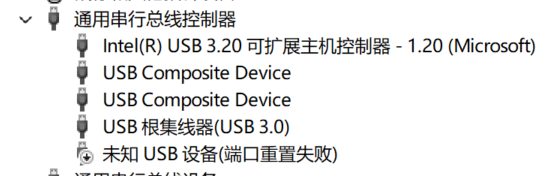
The down-arrow icon means disabled. The device name remaining in the tree is expected and does not mean the reset failure happened again. Re-enable the node if you later need to continue physical port mapping.
The workaround is reversible. If disabling it affects a connector or device, return to Device Manager and enable the same node.
When leaving it disabled is reasonable
Keeping only the failed node disabled is a reasonable workaround when:
- the notification occurs once at startup;
- there are no repeated connect/disconnect sounds during use;
- the keyboard, mouse, camera, and other normal devices work;
- external-disk transfers do not disconnect or report errors;
- a reboot validation passes after the change.
Continue diagnosis instead of merely removing the warning if:
- one connector never detects a device;
- a USB 3.x storage device repeatedly connects and disconnects;
- the same drive works elsewhere but fails on one port;
- one port negotiates only USB 2.0 and is clearly slower;
- mice, cameras, or disks disconnect randomly;
- multiple USB nodes report errors;
- storage transfers stop, the filesystem reports errors, or power is unstable.
Those symptoms are more consistent with a receptacle, SuperSpeed contacts, front-panel cable, motherboard header, power, or controller-channel problem. Back up storage devices first. Inspect internal cables only after shutdown and power disconnection, and never clean contacts with a metal tool.
Mapping SS07 to a physical port
To map the logical path later, use one known-good USB 3.x flash drive or external disk:
- Establish a baseline on a known-good USB 3.x connector.
- Use the same device, cable, and large test file throughout.
- Test every front and rear USB 3.x connector one by one.
- Wait at least 90 seconds after each insertion and watch Device Manager and event sounds.
- Record detection, stability, obvious speed degradation, and whether
SS07appears.
Use comparisons rather than a single observation:
- If one device fails, disconnects, or slows only on one connector, suspect that connector or its cable path.
- If a group of front-panel ports fails while rear ports work, inspect the front-panel USB cable and motherboard header first.
- If every connector is stable and only an otherwise unused
SS07intermittently fails enumeration, a ghost enumeration, controller state, or unmapped channel is more plausible.
Copy speed is affected by cache, flash media, and file size, so it is only a rough signal. To verify SuperSpeed negotiation, USBView from the Windows SDK/WDK can show connection speed and the USB tree.
What the evidence does and does not establish
This investigation confirms that:
- the startup chime was strongly associated with the failed unknown USB device;
- Code 43 represented a current node, not a stale screenshot;
- the warning stayed on
SS07while normal peripherals moved elsewhere; - neither the camera nor receiver was confirmed as the failed device;
- USB selective suspend was not an effective fix here and was restored;
- the BIOS update did not remove this warning;
- disabling only the failed node removed the startup notification while other devices remained operational.
It does not establish that:
SS07maps to one specific physical connector;- the root cause must be damaged contacts, a front-panel cable, or a motherboard defect;
- every Code 43 should be handled by disabling a device;
- a working USB 2.0 peripheral proves that the same connector’s USB 3.x channel works;
- firmware or Windows USB drivers cannot be responsible on another machine.
The most valuable evidence in this class of incident is not a lucky guess at a hardware name. It is the fixed logical path, timestamps, and single-variable comparisons. Once an error does not follow a peripheral, stop searching for a supposed device-specific driver and investigate the port path, physical connection, and controller state instead.